How to Mix a Song Online: A Complete Guide for Independent Artists
If you searched "how to mix a song online" and landed here, you have probably already noticed that most results point you towards DJ tools and mashup makers.
That is not what you are looking for.
This guide is for independent artists and producers who have finished recording their music and want to get a professional mix - the kind that sounds competitive on Spotify, translates across speakers and headphones, and does not give away that it was made at home.
What mixing a song actually means
Before going any further it is worth being precise, because the word "mixing" gets used broadly.
Mixing is the process of taking your individual recorded parts - drums, bass, guitars, keys, vocals - and combining them into a single, balanced stereo track. It involves setting levels so nothing is too loud or too quiet, applying EQ so each element sits in its own frequency range without clashing with others, using compression to control dynamics, adding reverb and spatial treatment to create depth, and panning elements across the stereo field so the track feels wide and dimensional.
It is not the same as merging two audio files together. It is not DJing. It is not combining songs into a playlist. It is the craft that takes a collection of recordings and turns them into something that sounds like a finished, professional track.
Done well, mixing can be what makes the difference between a demo and a release. For a clear explanation of how mixing differs from mastering and when you need each, AI Mixing vs AI Mastering: What's the Difference? covers it here.
What you need before you start
To mix a song online you need your stems - the individual recorded parts of your track exported as separate audio files.
If you have been working in a DAW like Ableton Live, Logic Pro, FL Studio, GarageBand or Bitwig Studio, exporting stems means bouncing each track or group individually as a WAV file. If you have been recording in BandLab, you can export individual tracks from there too.
A few things that matter at this stage:
Export as WAV, not MP3. MP3 is a compressed format that discards audio information. WAV retains everything and gives any mixing tool the full quality of your recordings to work with.
Make sure all stems start at 0:00. Every file should start at the same point in the timeline, even if there is silence at the beginning. If stems start at different points their timing relationships will be wrong in the mix.
Keep levels sensible. If a stem is clipping - peaking above 0dB consistently - reduce its level before you export. A stem that clips gives the mixing tool inaccurate information about the performance's actual dynamic range.
Label everything clearly. Kick, snare, bass, lead vocal, backing vocal, guitar. The more clearly labelled your stems are the faster the categorisation step goes.
For a full walkthrough of stem preparation, How to Prepare Your Stems for AI Mixing covers every DAW and every edge case.
How online mixing works
Once your stems are ready, the mixing process is straightforward.
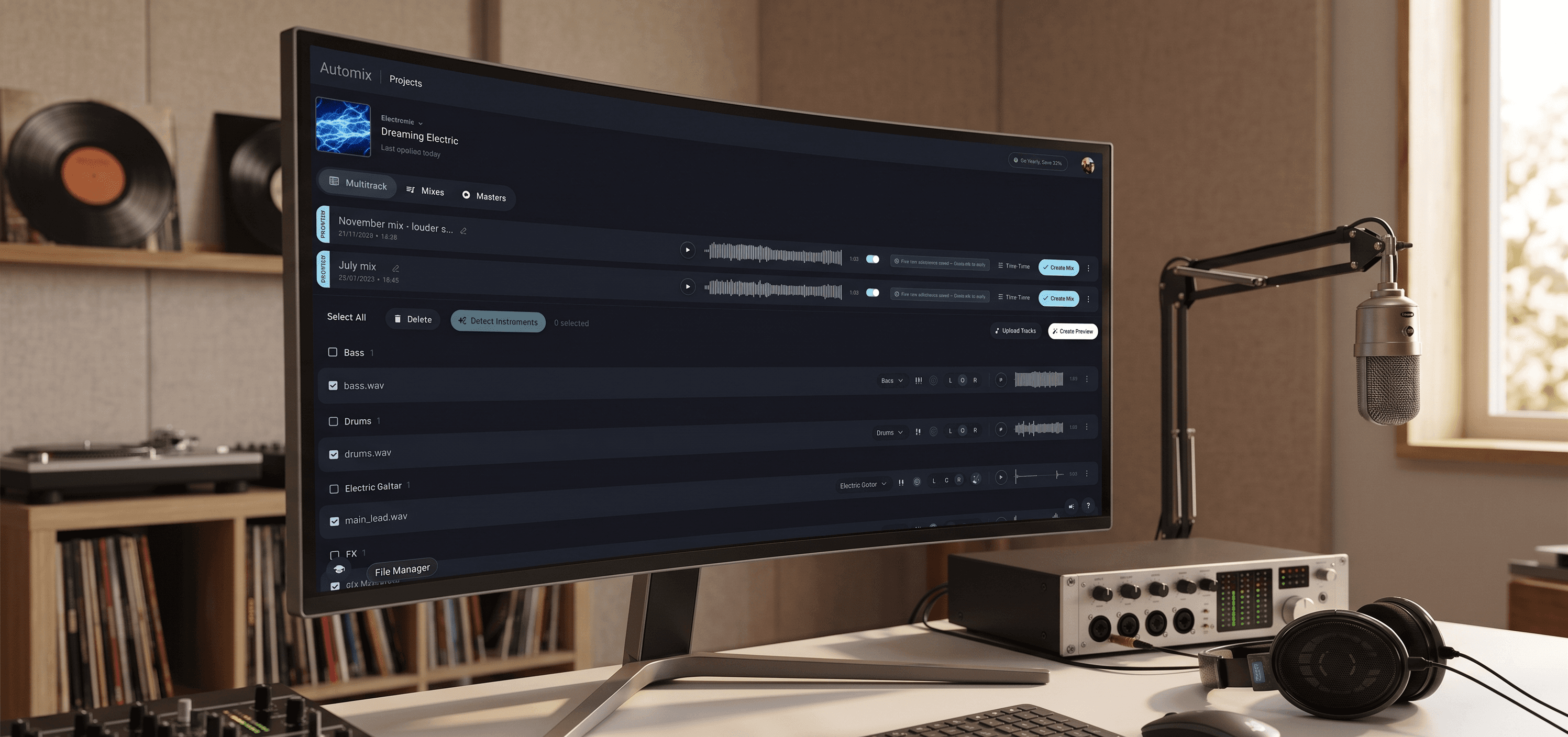
You upload your stems to Automix, assign each one to an instrument category - Kick, Snare, Bass, Lead Vocal and so on - set the genre to match your track, and set the Importance level for each element to tell the AI which parts of the track matter most.
The AI then processes each stem individually. It applies EQ to give each element its own frequency space, compression to control dynamics, reverb and spatial treatment to create depth and width, and panning to position everything in the stereo field. The result is a fully mixed stereo track - not a preset applied to a finished file, but a mix built from your individual parts.
You get a free preview of the full result before paying anything. Listen to it on headphones, on speakers, on your phone. If it sounds right, download. If not, adjust the settings and regenerate.
Genre selection matters more than most people realise
One of the most important decisions in the Automix workflow is genre selection. It shapes how the AI approaches the fundamental relationships in your mix - the balance between kick and bass, the space given to the vocal, the overall loudness approach and how bright or warm the result sounds.
If your genre is not exactly represented, pick the closest match and listen to the preview. The difference between genre selections is most audible in the low end and the vocal treatment. If the first preview feels slightly off tonally, try the next closest genre before adjusting anything else.
For a full guide to getting the most out of every setting, How to Get the Most Out of Automix covers the complete workflow.
Taking the result back to your DAW
If you are an Automix Pro subscriber, you can download the full project file and open it in Ableton Live, Bitwig Studio or Fender Studio. Every decision the AI made is visible and editable - EQ curves, compression settings, reverb sends, panning. You can use it as a starting point and refine from there with your own plugins and judgment.
This is the most powerful part of the online mixing workflow. The AI handles the technical foundation and you handle the creative decisions on top.
Automix Desktop (Beta) takes this further for Automix Pro subscribers - the same mixing workflow running entirely offline on your Mac or Windows PC, no uploads required, 2-5x faster than the web version. Included with Automix Pro.
And now for mastering
Automix includes a mastering tool as part of the workflow - once you are happy with your mix you can choose from a range of settings - Streaming, Optimal or Loud.
For everything that comes after this - getting your track onto streaming platforms, distribution and playlist pitching - How to Release a Song Independently covers the full pipeline.
Learn