How to Get the Most Out of Automix
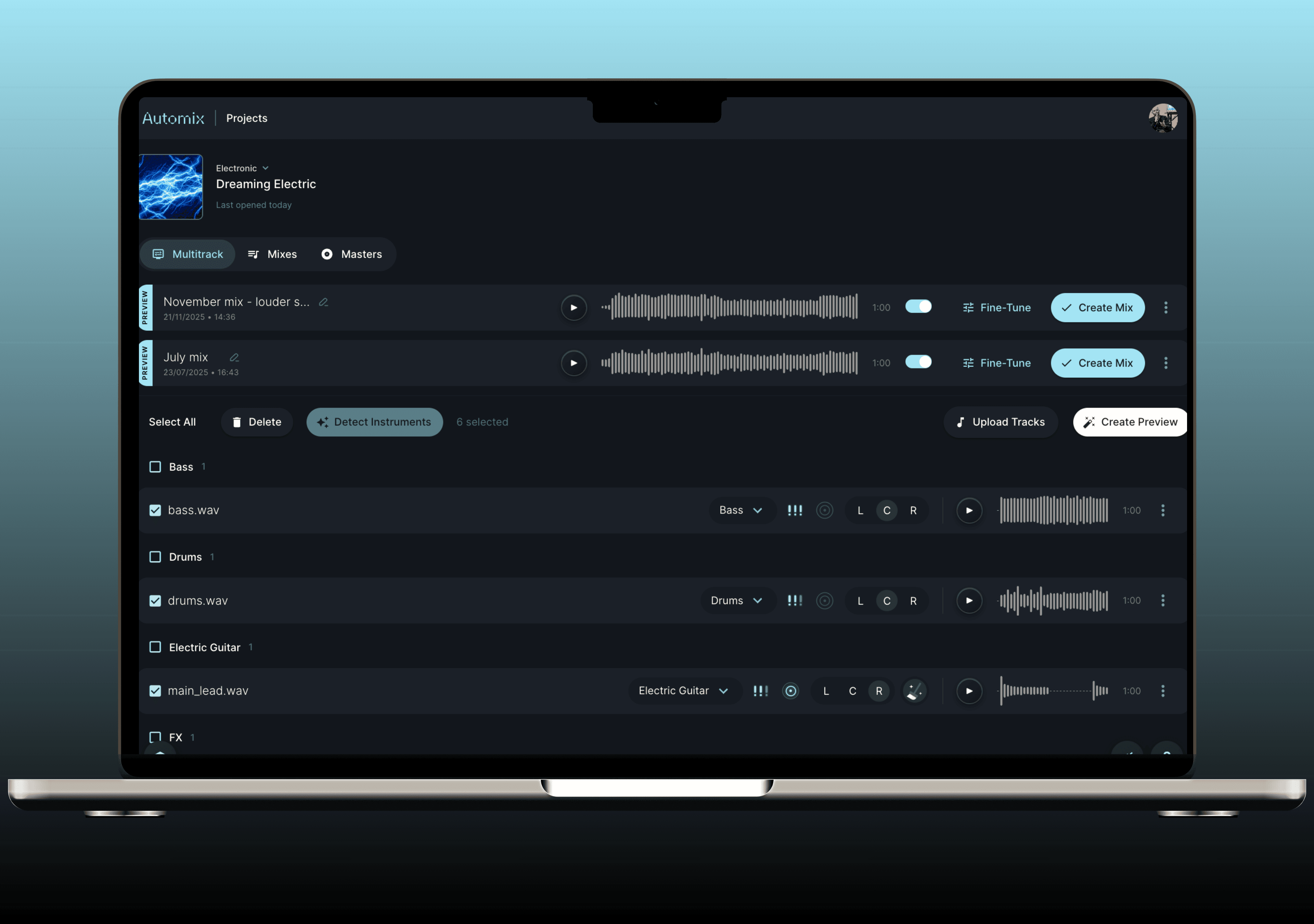
Over the past four years we have worked to make better audio accessible to more artists that use Automix, and we continue to look into new ways of doing this.
With that in mind - for those interested in digging a little deeper - we have created a breakdown of a few ways RoEx suggests you can really get the most out of our audio mixing and mastering tool, Automix.
Please take a look at the below guide and feel free to reach out if you have any questions around how to get your tracks sounding even better.
Good audio in, good audio out
This is the most important thing in the whole guide, and it happens before you even open Automix.
The AI is analysing your stems and making decisions based on what it hears. Give it clean, well-exported audio and you'll get a better mix back. Give it clipping, over-compressed, or poorly formatted stems and those problems will carry through.
A few things to sort before you upload:
Export individual stems, not a full mix. Automix works on separate elements. The more clearly defined each track is, the more accurately it can process them.
Use WAV, 16-bit. Avoid MP3 or other compressed formats - they introduce artefacts that affect how Automix reads the audio.
Keep levels sensible. You don't need to master your stems before uploading. But if a track is distorting or barely registering, fix that first.
Start all stems at 0:00. Everything needs to be in alignment for the mix to make sense.
The cleaner your stems, the more Automix has to work with. It's a simple thing, but it's the single biggest factor in the quality of your result.
How to use panning
Panning is the placement of each sound in the left-right stereo field. It's what gives a mix width and space - and when it's done well, each element has room to breathe without competing with anything else.
Automix gives you a Pan Preference setting for each stem, and understanding how it works will help you get the most from it.
If you want Automix to decide panning for you - leave the Pan Preference unset. Automix will determine the best position for each stem based on the instrument type, genre, and how the tracks interact with each other. For most sessions, this is a solid starting point.
If you've already set panning in your stems - and you want to keep it - set the Pan Preference to Centre. This tells Automix to treat each stem as already positioned and preserve your choices, rather than repositioning them. This is the right option if you've done deliberate panning work in your DAW and don't want the AI to override it.
If you want to set specific panning positions in Automix - you can do that too, per stem, before generating your preview.
As a general guide when setting panning manually:
Kick, bass, and lead vocals typically sit in the centre.
Melodic and harmonic elements - synths, guitars, keys - can spread out to create width.
Doubled or layered parts work well panned opposite sides to add depth without cluttering the middle.
Set your preferences, generate the preview, and listen to how the stereo field sits. If something feels too wide or too narrow, adjust and regenerate before spending a credit.
Importance is... important
If you've only explored Automix at surface level, this is the setting most worth understanding.
Each stem in your project can be marked as low, medium, or high importance. This tells Automix where that element should sit in the overall mix - how much level, presence, and space it gets relative to everything else. It's not just a volume slider - it shapes how the AI weighs that element across the full processing chain.
This is where your creative judgment comes in. You know the track. You know what leads and what supports. Automix handles the processing; you communicate the intent.
A few practical examples:
Lead vocals, main riff, the part the listener's ear follows - high importance.
Rhythm guitars, pads, harmonic support - medium importance.
Atmospheres, subtle textures, ambient layers - low importance.
If your first preview sounds off - vocals buried, a synth overwhelming everything - importance is the first thing to look at. Adjust, then regenerate. The preview won't update until you do.
The built-in mixer view also lets you ride levels manually in real time before you spend a credit. Use it alongside importance settings to dial things in exactly.
The video below covers the full stem preparation and Automix workflow end to end - including naming, categorisation, Importance settings and DAW export.
The video also covers the Fine-Tune panel and DAW project export in detail, if you want to see the complete workflow end to end.
Genre-based settings (experiment with these)
When you set up a project, you choose a genre. This isn't just a label - it's a meaningful input that shapes how Automix approaches the entire mix. Different genres have different sonic expectations, and the AI knows them.
Electronic music typically calls for tighter low-end and harder compression. Acoustic and folk music needs more natural dynamics. Hip-hop has a specific relationship between bass, kick, and vocal. Pop tends toward a broad, polished sound across the frequency range.
Automix uses your genre selection to set those targets before it starts processing.
The practical take: don't just leave it on whatever genre comes up first. Choose the one that genuinely matches your track. If your music sits across two styles - live drums in an electronic context, or pop with a strong R&B influence - try the closest option, listen to the result, then try an adjacent genre and compare.
Genre is one of the simplest settings to change and one of the most impactful on the overall feel of what comes back. Give yourself a few minutes to experiment before committing a credit.
Categorising your instruments and voices
Correctly assigning an instrument type to each stem is one of the most important steps in the workflow - and one of the most commonly misunderstood.
Automix uses the instrument type to understand what role each element plays in the mix, and processes it accordingly. Getting these assignments right gives the AI the context it needs to make good decisions.
Here's a clear breakdown of the less obvious ones:
Drums and percussion Use the Drums category only if the stem contains a full kit. If you've exported individual drum elements, use the specific categories - Kick, Snare, Cymbals.
Hi-hats are Cymbals, not Drums.
Claps go under Snares.
Bells and melodic percussion Bells, synth bells, music box sounds - categorise these as Cymbals.
Effects and textures Vinyl crackle, noise, atmospheric FX - anything non-musical goes under FX or Other. Don't force these into an instrument category.
Vocals Use the Vocals category for leads and backing parts. Where possible, separate your lead vocal from harmonies and doubles - it gives Automix more targeted control over the most important element in most mixes.
Take a few minutes to work through these carefully before you kick off a preview. It's not a tedious step - it's one of the highest-value things you can do to improve the accuracy of your mix.
Mastering your mastering
Automix doesn't just mix - once your mix is done, it masters too. The mastering stage applies final processing to bring your track to a release-ready loudness and make sure it translates well across different playback systems, from streaming to phone speakers to a club system.
A few things worth keeping in mind:
Don't over-process your stems before uploading. If tracks are already heavily limited or clipped, the mastering stage has less room to work. Clean input leads to clean output. For more on what good loudness looks like at the mastering stage, this guide to loudness and metering is worth a read.
Use a reference track if you have one. Automix supports reference-based mastering - upload your favourite track, and Automix targets those tonal characteristics. It's useful if you want your track to sit naturally alongside your existing music, or music in your genre.
Check the result on more than one system. Once you've downloaded your mastered track, listen on headphones, speakers, and your phone. A good master holds up across all three. If something feels off in one context, it usually points to something in the mix rather than the mastering stage itself.
If you want detailed feedback on your mix before you commit to a master, Mix Check Studio is designed exactly for that - free, precise analysis that tells you what to address and why.
Downloading mixes, processed stems, and project files
Once you're happy with the project, Automix gives you three download options. Each serves a different purpose - it's worth knowing what each one is for.
The mixed and mastered track Your complete, release-ready stereo file. Upload it directly to Spotify, Apple Music, or wherever you release - it's designed to meet streaming platform standards straight out of the tool.
Processed stems Your individual stems with all of Automix's processing applied - EQ, compression, reverb, gain - but not bounced down to a stereo mix. Download these if you want to bring the processed elements back into your DAW, layer additional parts on top, or make selective adjustments without starting from scratch.
The project file This is one of the most powerful things Automix offers, and one of the most underused. The project file (available for Ableton Live, Bitwig Studio, and Fender Studio via DAWproject export) contains your raw stems alongside all the processing Automix applied, using stock DAW effects. Open it and you can see exactly what was done - every EQ curve, every compressor setting - and start editing from there.
It's a learning tool as much as a production tool. You can reverse-engineer the decisions, understand the reasoning behind them, and use the session as a strong starting point for your own work. If you're using Automix regularly, make a habit of opening the project file - not just as an output, but as a way to build your own ear over time.
A few extra things worth knowing
Automix handles up to 32 stems in one project. More than enough for most real-world sessions - more on how that works for larger mixes here.
Don't spend a credit before you're happy with the preview. Adjust importance, panning, and genre - regenerate and listen - before you commit.
Use the noise cleaning tool if Automix flags a problem. It strips background noise and enhances audio quality. The difference is usually noticeable, and you can discard the change if you prefer the original.
Read the mix report. It tells you what was processed and why. Even if you're not planning to dig into the project file, it's worth reading - it builds your understanding of what good mixing decisions look like.
The more intentionally you use each part of Automix, the better the results. It's designed to do the heavy lifting - but the settings, the categorisation, and the creative judgment you bring are what take a good mix to a great one.
If you are an Automix Pro subscriber, Automix Desktop (Beta) lets you run the full workflow offline on your Mac or Windows PC - no uploads, 2-5x faster processing, your audio never leaves your machine.
Try Automix for free - preview your mix and get one free mix download before you pay for anything.
Learn