From Suno to Your DAW: How to Take AI Music into Ableton Live, Bitwig & Fender Studio via Automix
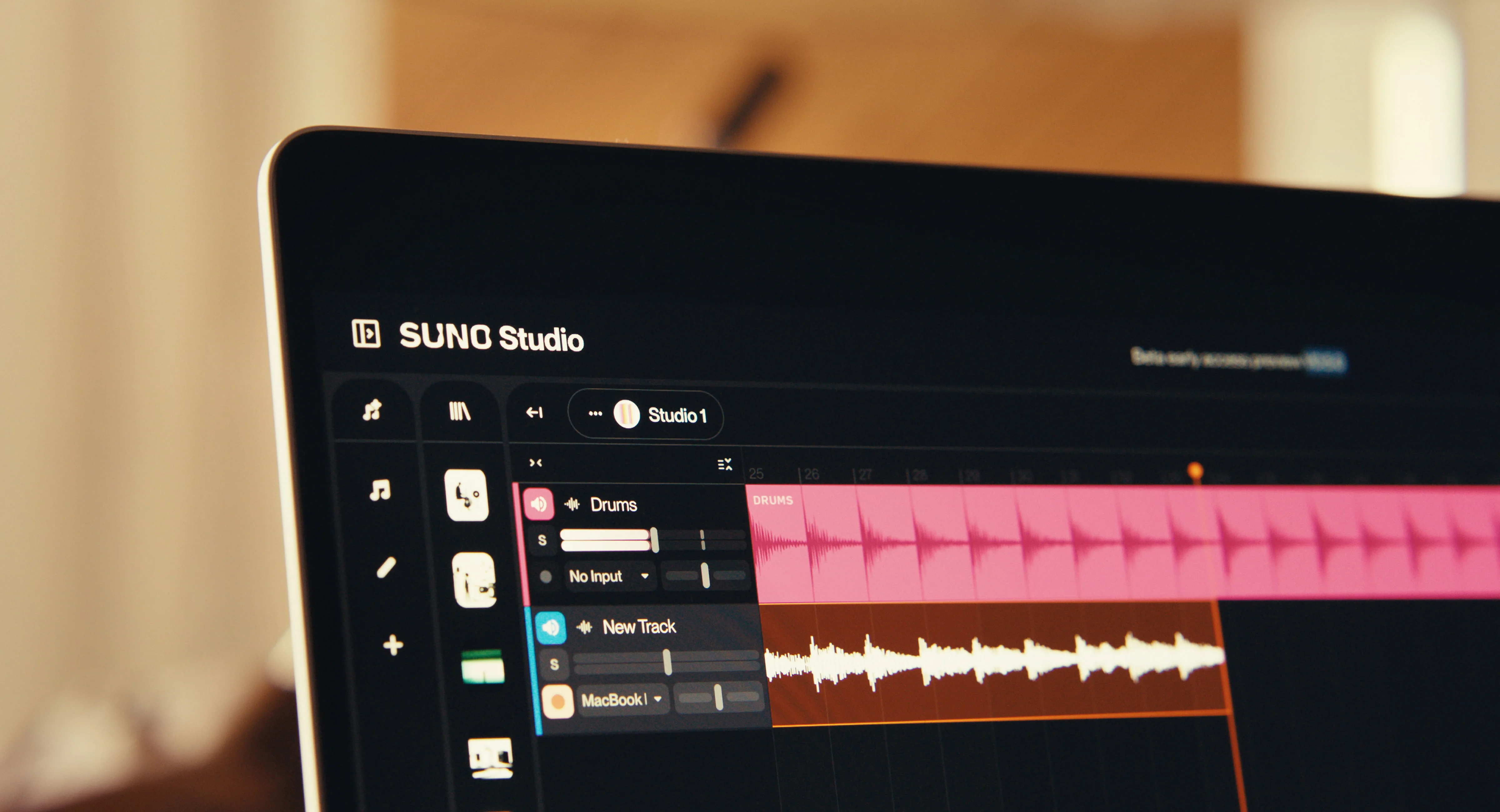
You made something great in Suno. The melody works, the lyrics land, the vibe is spot on. But now you want more. Maybe you want to add your own guitar part, tweak the vocal processing, or layer in a synth that Suno couldn't quite nail. Maybe you just want the creative control that comes with having every element of your track laid out in a real DAW.
The problem? Getting a Suno track into Ableton Live, Bitwig Studio, or Fender Studio in a usable form isn't straightforward. You can download the stereo mix, but that's a single bounced file; there's nothing to work with. Even if you export stems on a paid Suno plan, they're rough: audio bleeds between tracks, levels are inconsistent, and importing them into a DAW still leaves you with hours of cleanup before you can start being creative.
There's a faster way. One that gets your Suno stems mixed, balanced, and loaded into your DAW as a fully structured project in minutes.
The Workflow: Suno → Automix → Your DAW
Automix by RoEx bridges the gap between AI-generated music and professional DAW production. Here's how the full pipeline works:
Step 1: Export Your Stems from Suno
If you're on a Suno Premier plan, you can download individual stems (vocals, drums, bass, instruments) as WAV files. A few tips to get the best starting material:
Always export as WAV. MP3 introduces additional quality loss that compounds through further processing.
Be specific with your prompts. Including production terms like "spacious mix," "vocal-forward," or "warm bass" can influence how Suno balances the initial generation. Put vocal descriptions first; Suno tends to prioritise elements mentioned earlier in the prompt.
Generate multiple versions. Suno can be unpredictable. Generating 3–4 versions of the same prompt and picking the cleanest one gives you better source material.
Don't have a Premier plan? You can still upload the full stereo mix to Automix for mastering. You won't get individual stem control, but you'll still get a polished, loudness-optimised track.
Step 2: Upload to Automix and Mix
Head to Automix and upload your Suno stems. Label each one by instrument type (vocals, drums, bass, etc.), and let the AI mixing engine do its work.
Automix analyses and balances your tracks, setting appropriate levels, panning, EQ, and spatial positioning for each element. Even with Suno's imperfect stem separation (the drum stem with ghost vocals, the vocal stem with instrumental artefacts), Automix's algorithms are designed to work with the audio as it is, producing a cohesive, balanced mix.
You can preview the result, adjust levels, and optionally apply reference-based mastering, upload a track you already like the sound of, and Automix will match its loudness, tonal profile and stereo width.
Step 3: Export as a DAW Project
This is where it gets powerful. Instead of just downloading a finished stereo mix, Automix lets you export your project as:
An Ableton Live Set (.ALS file) - open it in Ableton and your tracks appear as individual channels with all the mixing decisions applied.
A DAWproject file - compatible with Bitwig Studio and Fender Studio.
Your stems arrive in your DAW already balanced, EQ'd, compressed, and positioned. No more starting from a messy pile of Suno exports.
This feature is available on Automix Pro.
Learn more about how the integration works on the Automix for Ableton Live page.
Step 4: Make It Yours in the DAW
Now the fun starts. With your Suno stems loaded as a properly structured DAW project, you can:
Add your own instruments. Record a guitar part, layer in a synth pad, or add percussion that Suno couldn't generate.
Fine-tune the mix. Tweak individual track levels, panning, and effects with your favourite plugins.
Apply creative processing. Add sidechain compression, parallel processing, automation, or any effect chain you'd normally use in your productions.
Fix the "Suno sheen." That characteristic AI reverb or ambience that makes Suno tracks sound slightly artificial? Now you have stem-level access to address it with surgical EQ, gating, or replacement.
This is the workflow for creators who want the speed of AI composition with the depth of real production. Suno handles the ideas. Automix handles the engineering. Your DAW handles the artistry.
Watch the Walkthrough
For a detailed step-by-step guide showing the entire process from Automix to Ableton Live, watch the walkthrough above.
Why Not Just Import Suno Stems Directly into a DAW?
You absolutely can, but you'll spend hours on corrective work before you can start being creative. Suno stems typically have:
Inconsistent levels. Bass might overpower vocals, mid-range instruments can clash, and the high end varies between harsh and dull.
Audio bleeding between stems. The drum track has ghost vocals, and the vocal track has instrumental artefacts. Manual cleanup is tedious.
No spatial positioning. Everything arrives panned centre with no stereo width or depth.
No frequency balancing. Elements compete for the same frequency space, creating muddiness.
Automix solves all of this in minutes. When you export to your DAW, you're starting from a professional mix rather than a raw AI output. It's the difference between renovating a well-built house and starting with a pile of mismatched materials.
The Complete Suno-to-Release Pipeline
Here's what the full journey looks like:
Create in Suno. Focus on the creative decisions like lyrics, melody, genre, and mood. This is where Suno excels.
Export your stems (or full mix) as WAV files.
Upload to Automix. Let the AI mixing engine balance, EQ compress, and position your tracks.
Export as a DAW project. Choose Ableton Live Set or DAWproject format.
Produce in your DAW. Add instruments, apply effects, automate, and polish.
Master with Automix (optional). Export your final mix from the DAW as a stereo file and use Automix's standalone mastering with reference matching for a release-ready master.
Release. Distribute through UnitedMasters, DistroKid, TuneCore, or any other platform.
The entire post-production chain, from Suno export to DAW-ready project, takes minutes, not hours.
If you already produce in Ableton Live and want a deeper guide to mixing your own sessions using AI, this is worth a read: How to Mix Your Ableton Live Session Using AI
Ready to Bridge AI Music and Real Production?
If you've been creating with Suno and want to take your tracks further, not just louder and cleaner, but into a full production environment where you have complete creative control, this workflow gets you there.
Upload your Suno stems, hear the difference in minutes, and export straight to your DAW. Your first mix download is free, no credit card needed to start.
On Mac or Windows? Automix Desktop (Beta) lets you run this entire pipeline offline - no uploads required before exporting to Ableton, Bitwig or Fender Studio. Included with Automix Pro.
RoEx builds AI-powered audio tools for musicians, producers, and creators. Our technology has enhanced over 5 million tracks since 2023. Learn more about RoEx →
Learn