How to Check Your Mix Before You Release
A lot of mix problems are not obvious until a track has been released and sounding wrong on a streaming platform. By then it is too late to fix them without going through the whole release process again.
Catching them before you distribute takes under five minutes. Here is exactly what to check and what each problem means.
Why mix checks matter before release
Streaming platforms process your audio when you upload it. Spotify, Apple Music and others normalise loudness, convert file formats and apply their own processing. If your master has problems going in, some of those problems are compounded by that process.
The three most common issues that get through to release and cause problems are loudness, tonal balance and mono compatibility. All three are identifiable and fixable before you distribute - but only if you check.
How to run a mix check
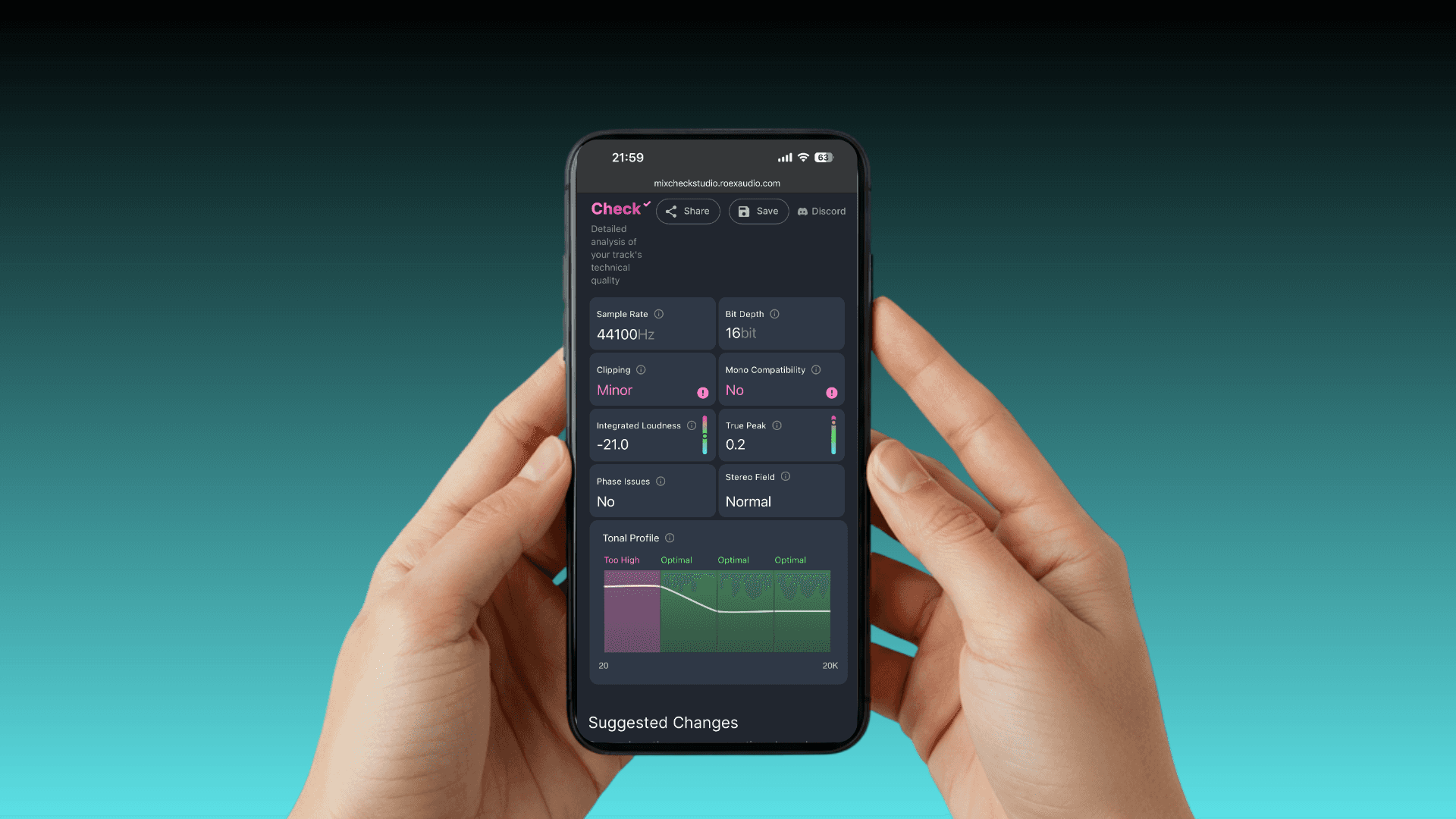
Mix Check Studio analyses your finished stereo mix or master instantly. Upload your WAV file and you get a full breakdown of tonal balance, loudness, dynamics, stereo width and mono compatibility. Free, no account needed, and it only takes a few minutes.
Run it on your mix before mastering, and again on your final master before you distribute. The two checks could catch different problems.
If the analysis flags problems you want to fix straight away, Mastering+ is built directly into Mix Check Studio. It works on both mixes and masters - upload your file, preview the result for free, and pay per track to download or subscribe with a Studio Pro subscription for unlimited access. It is the fastest way to address tonal balance, loudness and dynamics issues without going back to a full mix session.
What to look for: loudness
The single most common problem in independent releases is a master that is too loud. Streaming platforms normalise to a target loudness level - Spotify at -14 LUFS, Apple Music at -16 LUFS. If your master is significantly louder than these targets, the platform turns it down - and the heavy limiting you applied to make it loud becomes audible as distortion and squashing.
The Mix Check Studio loudness reading tells you exactly where your master sits. If it is significantly above -14 LUFS integrated, you have headroom to bring it down and let the track breathe more before resubmitting to mastering.
For a full breakdown of what LUFS targets to aim for, What LUFS Should I Master At? covers every platform in detail.
What to look for: tonal balance
A tonal balance problem means too much or too little energy in a specific frequency range. The most common ones in independent mixes are:
Too much low end - a build-up below 100Hz that makes the track sound muddy on consumer speakers even if it sounds full on studio monitors or headphones.
Harsh upper midrange - a peak in the 2-5kHz range that makes the track sound aggressive or fatiguing on earbuds, which is where most streaming listeners hear music.
Thin or lacking warmth - a dip in the low-mid range that makes the track sound hollow or demo-like.
The tonal balance graph in Mix Check Studio shows you exactly where your track sits relative to a frequency-balanced reference. If something is significantly out of range it will be visible immediately.
If your mix has a tonal balance problem at the stem level - too much bass in the arrangement, a harsh guitar tone - mastering cannot fix it. That is a mixing problem and needs to be addressed before the master stage. Automix processes individual stems and addresses tonal balance at the source - which is why the result is fundamentally different to any stereo mastering tool.
What to look for: mono compatibility
Mono compatibility is an often overlooked check in independent releases and one of the most important.
When a stereo track is summed to mono - as it is on phone speakers, many Bluetooth devices, club PA systems and smart speakers - phase cancellation can cause elements to significantly reduce in volume or disappear entirely. A bass that sounds full in stereo can lose most of its energy in mono. A vocal that sits clearly above everything in stereo can drop back into the mix.
The mono compatibility check in Mix Check Studio flags any significant phase issues. If the reading shows a problem, the most common cause is heavy stereo widening on bass-heavy elements - sub frequencies should always be kept in mono.
What to look for: clipping
A clipped master has distortion baked in. It cannot be removed after the fact. Mix Check Studio flags any true peak clipping in your file.
If your master is clipping, go back to the mix stage, reduce the output level before the limiter, and remaster. A true peak ceiling of -1dBTP is the standard for streaming delivery.
The checklist
Before you submit to a distributor, confirm:
Loudness is at or below -14 LUFS integrated for most streaming platforms
Tonal balance graph shows no significant outliers
Mono compatibility shows no major phase issues
No true peak clipping
File is exported as WAV at 44.1kHz or 48kHz, 24-bit
Run the check at Mix Check Studio - free, no account needed.
If the check flags something that needs fixing, Mastering+ lets you address it without starting over. Free to preview, works on both mixes and masters. Pay per track or subscribe with Studio Pro for unlimited access.
For the full release process once your track passes the check, How to Release a Song Independently covers distribution, metadata and playlist pitching.
Learn