How to Mix in Ableton Live with AI - Without Losing Creative Control
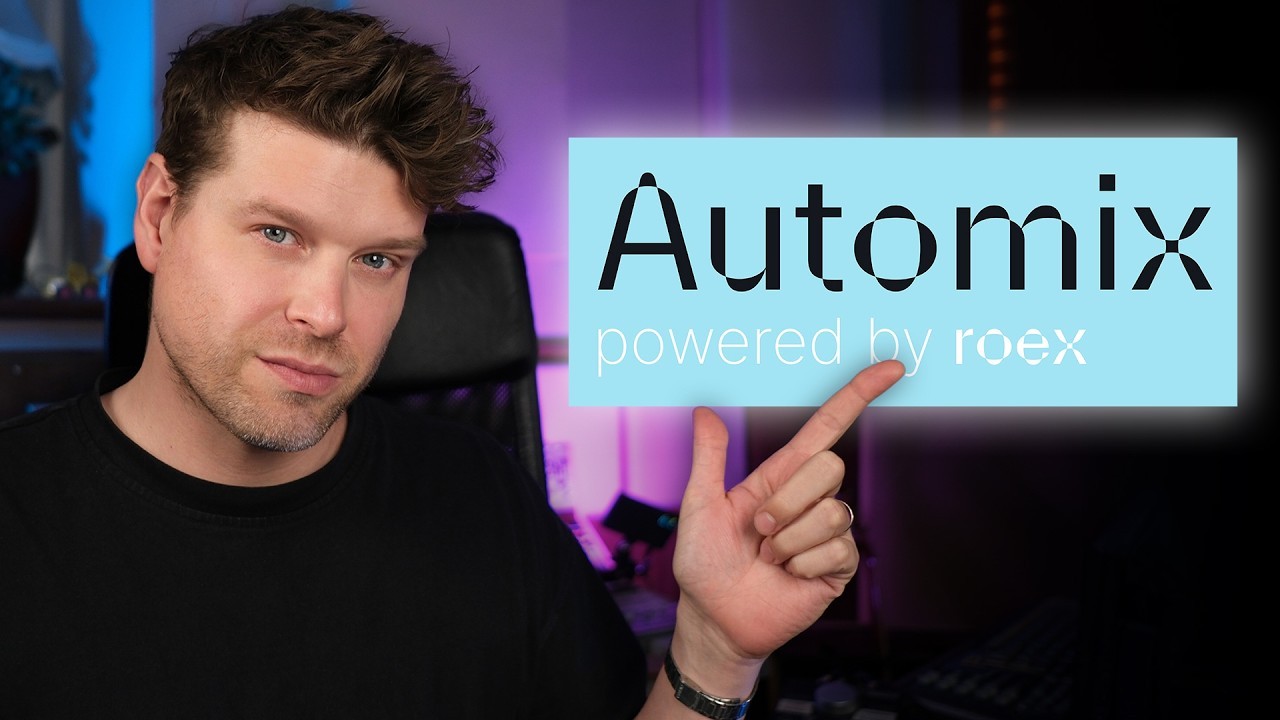
AI mixing tools are everywhere right now. Most of them promise the world. Push Patterns - one of YouTube's leading Ableton Live educators - put Automix to the test to find out if it actually delivers.
Automix is RoEx's AI mixing and mastering tool - upload your stems and it returns a balanced mix as a ready-to-use Ableton Live project file, with all the mixing decisions already applied.
Most AI mixing tools fall into one of two camps. Either they do everything for you - handing back a finished mix you had no say in - or they bolt on a few automated tweaks that barely move the needle. Neither is particularly useful if you care about the sound of your music.
Automix for Ableton Live is built around exactly this workflow - here's how it works in practice. Rather than replacing you as the engineer, it handles the technical groundwork - balancing, processing, noise cleaning - and then hands everything back so you can take it further in your DAW. The AI removes the hard work, leaving you in control.
Push Patterns, a specialist in Ableton Live production and workflow, put Automix through its paces in a recent video on his channel. Here's a summary of what he found, step by step. You can watch the full video here.
Step 1: Export your stems from Ableton Live
The first step is getting your stems out of your project. In Ableton, Push Patterns selects the tracks he wants to export, hits Command + Shift + R, and sets the export to PCM Wave 24bit. No MP3. He then selects "Selected Tracks Only" and exports into a dedicated folder.
Simple, clean, ready to go.
Step 2: Create a project in Automix and upload your stems
Inside Automix, he creates a new project and selects his genre - electronic, in this case. He then drags all his stems in at once. One thing worth noting: Automix can handle up to 32 tracks in a single mix, which covers most real-world sessions comfortably.
Once uploaded, each stem needs to be assigned an instrument type. Push Patterns works through his tracks - keys assigned as synth, bass, vocals, drums - and then kicks off a preview mix.
Step 3: Listen back and adjust track importance
The first preview already sounds noticeably better. But for Push Patterns, the vocals are sitting a little loud. This is where Automix does something different from a standard auto-mixer: you can go into each track and set its importance - low, medium, or high. You can also adjust reverb and panning preferences per track, and preview individual stems before regenerating the full mix.
Worth knowing: if you adjust any of these settings, you need to regenerate the preview to hear the changes reflected across the whole mix.
Step 4: Use the Audio Cleanup tool
Automix flags that one of the vocal tracks has some noise on it. In this case it's a warped sample with some digital artefacts, so Push Patterns hits clean. The tool strips out background noise and enhances the audio quality. He listens back before and after, and the result is noticeably cleaner and slightly louder.
If you change your mind, you can discard the changes at any point.
Step 5: Fine-Tune levels in real time
Before spending a credit, Automix also lets you adjust your levels manually using a built-in mixer view. Push Patterns uses this to ride the vocals down a touch in real time while the track plays back. If you go too far, there's a reset button to bring everything back. Once happy, he saves the changes.
Step 6: Generate the final mix
Now he hits "Create Mix." From the completed project, there are several options: download the mixed track, download individual stems, or - the part that makes Automix genuinely useful for Ableton users - download the full Ableton Live session.
The session download includes the raw stems and all the processing applied using Ableton's stock audio effects. That means you can open it up, see exactly what Automix did, and start making changes from there.
Step 7: Open the Ableton Live session and take it further
Push Patterns opens the session and works through what Automix has applied. On the vocals: a low-cut filter, a presence boost via EQ, and a compressor. His take on the compressor settings? Questionable release time - a little long for his taste. But that's the point. He can go straight in and change it, swap out plugins, or simply use the session as a clean starting point for his own mix.
As he puts it, Automix gives him a fresh, clean slate to start mixing with.
Step 8: Read the mix report
Automix can also generate a mix report alongside the session - a breakdown of what it did and why. Push Patterns finds this genuinely useful: it tells you what processing was applied to each element, which means you can reverse-engineer the decisions and learn from them.
In his words, it's giving you a lesson at the same time as improving your mix.
Pricing
Free plan: create and preview mixes, but no downloads.
Pay-as-you-go: $5.99 per track for the mixed file.
Automix Pro subscription: £19.99 / $24.99 a month, which includes individual stems, the Ableton Live session download, audio cleanup, reference matching, and mix reports.
Want to try Automix for yourself?
If Push Patterns' walkthrough has left you curious, the best thing to do is try it on your own material. Upload your audio stems, generate a preview on the free plan, and hear what it does to your track before spending anything. You can get started at automix.roexaudio.com.
And if you want to dig further into the quality of your mixes before and after, Mix Check Studio gives you a free tonal, dynamics, and loudness analysis - useful context for understanding what Automix is working with and how your tracks are shaping up.
Subscribe to Push Patterns' channel for more Ableton Live tutorials and production walkthroughs - Push Patterns on YouTube.
Prefer to work offline? Automix Desktop (Beta) brings the same AI mixing to your Mac or Windows desktop - no uploads before exporting back to Ableton. Included with Automix Pro.
Prefer a written step-by-step guide you can follow at your own pace? How to Mix Your Ableton Live Session Using AI covers the full process from stem export to release-ready track.
Learn