How to Mix and Master Your GarageBand Tracks (Without Becoming an Audio Engineer)
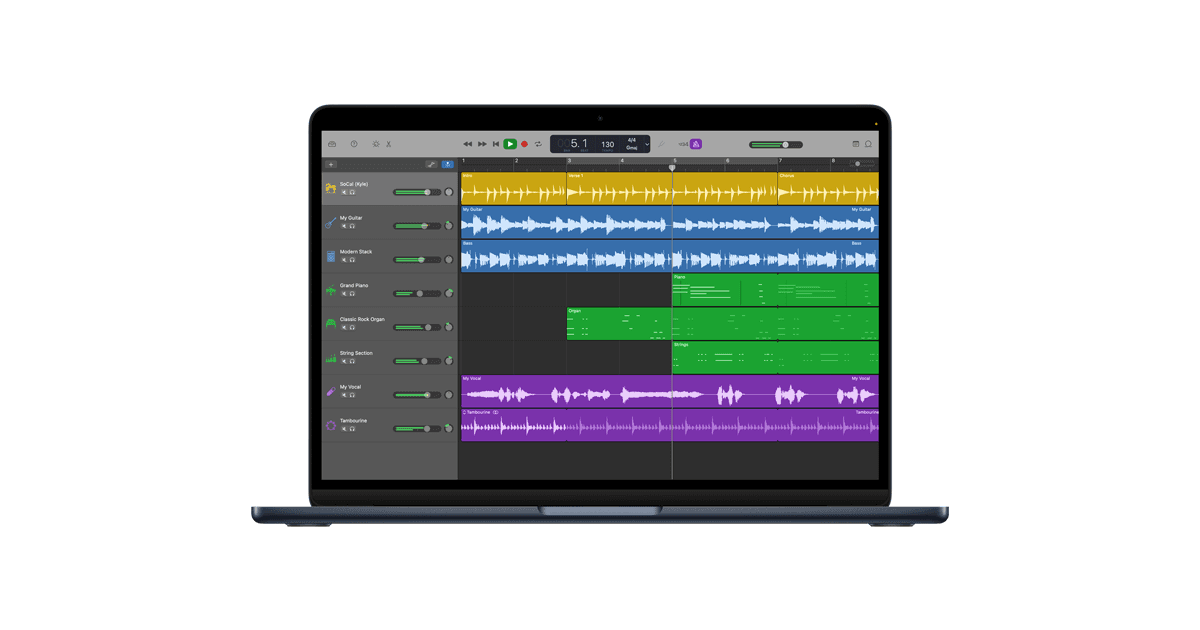
You've recorded something you're proud of in GarageBand. The performance is there, the parts work together, and when you play it back in the app it sounds great. Then you export it, play it next to a song on Spotify, and wonder why yours sounds so much quieter, muddier, and less polished. You're not imagining it, and you're definitely not alone.
GarageBand is an incredible tool for creating music, but there's a gap between what it produces and what listeners expect from a finished release. Here's why that gap exists, and the fastest way to close it.
The GarageBand Quality Gap: Why Your Exports Don't Match Your Expectations
GarageBand gives you a surprising amount of creative power for a free DAW. Artists like Billie Eilish and Ed Sheeran have famously used it. But there's a reason professional releases go through a dedicated mixing and mastering process, and GarageBand's built-in tools only get you part of the way there.
Here are the most common problems GarageBand users run into:
Your exported song is quieter than everything else. This is probably the single most common frustration. You listen to your track in GarageBand and it sounds fine. You export it, drop it into your music library, and it's noticeably quieter than every other song. Commercially released tracks have been mastered to meet loudness standards for streaming platforms; your GarageBand export hasn't.
The mix sounds "boxy" or "muddy." Frequencies pile up, especially in the low-mids around 250–500 Hz, where most instruments and vocals compete for space. Without careful EQ work on each track, things start to sound congested and undefined. Professional mixing carves out space for each element so everything sits clearly in the frequency spectrum.
The stereo image is flat. If most of your tracks are panned centre, your mix will sound narrow and one-dimensional compared to professional productions that use panning, stereo effects, and spatial processing to create width and depth.
GarageBand's mastering tools are limited. GarageBand has a few mastering presets, a basic compressor, EQ, and a limiter. These can help, but they're blunt instruments compared to what a dedicated mastering process provides. Many users end up stacking 3-4 limiters on the master bus just to get competitive loudness, which often crushes the dynamics and life out of the track.
The export volume disconnect. GarageBand's auto-normalise feature creates a mismatch between what you hear during playback and what ends up in the exported file. Turn it off and the export is too quiet. Turn it on and you might get clipping. It's a source of endless frustration in forums and support threads.
The Traditional Fix: A Steep Learning Curve
Search for how to master in GarageBand and you'll find advice like:
Export your song as an AIFF, import it into a new GarageBand project, then manually configure a Channel EQ, Multipressor, and Limiter on the master track
Buy third-party plugins like iZotope Ozone or FabFilter's mastering bundle
Upgrade to Logic Pro for more control
Learn about LUFS targets, gain staging, compression ratios, and frequency masking
All of this is valid. But if you got into music-making because GarageBand made it accessible, spending weeks learning mastering fundamentals or hundreds of pounds on plugins defeats the purpose. You want your music to sound professional, but you don't necessarily want to become a mastering engineer.
A Faster Path: Let Automix Handle the Technical Work
Automix by RoEx is an AI-powered mixing and mastering platform built for exactly this situation. It was developed by audio researchers from Queen Mary University of London, and the algorithms behind it are grounded in professional mixing principles and psychoacoustic research, not just generic AI processing.
It's designed for musicians who want to focus on creating rather than the technical complexities of post-production. Here's how it works with your GarageBand projects:
Option 1: Upload Your Stems for a Full AI Mix and Master
This is the best approach if you want the highest-quality result. GarageBand lets you export individual tracks (stems), and Automix can mix them into a balanced, professional-sounding track.
How to export stems from GarageBand:
Open your project in GarageBand on Mac.
Solo the first track (click the headphone icon on the track header).
Go to Share → Export Song to Disk. Choose AIFF or WAV format (uncompressed), and make sure "Export at full volume" is unchecked in your Advanced Preferences.
Name the file clearly (e.g., "Vocals," "Drums," "Guitar").
Repeat for each track.
For a detailed walkthrough with screenshots, see our guide: Exporting Stems from GarageBand to Automix.
Then upload to Automix:
Go to automix.roexaudio.com and upload your stems.
Label each stem by instrument type (vocals, drums, bass, guitar, synth, etc.).
Click "Create Preview", Automix analyses your tracks and applies level balancing, EQ, panning, and spatial processing based on professional mixing practices.
Listen to the preview, adjust any levels to taste, then master your mix with one click.
Download your finished, release-ready track.
The entire process takes minutes, not hours. Automix handles the EQ sculpting, dynamic control, stereo imaging, and loudness optimisation that would take significant expertise to do manually.
Option 2: Upload a Stereo Mixdown for Mastering Only
If you're happy with how your mix sounds in GarageBand but just need it louder, clearer, and ready for streaming platforms, you can upload a single stereo file for mastering.
In GarageBand, go to Share → Export Song to Disk.
Select AIFF or WAV, highest quality.
Upload the file to Automix and select "Master."
Optionally add a reference track, a professionally released song whose tonal character you'd like Automix to match.
Preview, then download.
This solves the loudness and tonal balance problems without requiring you to learn about limiters, LUFS targets, or compression ratios.
Why Automix Instead of Doing It in GarageBand?
GarageBand is great for recording and arranging. But mixing and mastering are specialised disciplines, and GarageBand's tools for them are intentionally basic. Apple expects serious users to upgrade to Logic Pro.
Here's what Automix gives you that GarageBand doesn't:
Intelligent multi-track mixing. Automix doesn't just make things louder. It analyses the frequency content, dynamics, and spatial characteristics of each stem and makes informed decisions about EQ, compression, panning, and reverb. The same decisions a professional mix engineer would make, but in minutes rather than hours.
Loudness optimisation for streaming. Automix masters your track to meet the loudness standards expected by Spotify, Apple Music, YouTube, and other platforms. No more wondering why your song sounds quiet next to everything else in your library.
Reference-based mastering. Upload a commercially released track as a reference, and Automix will match its tonal profile. If you want your indie rock track to have the warmth of a particular album or your pop track to have the brightness of a specific release, you can steer the result in that direction.
No plugins to buy or learn. You don't need to invest in FabFilter, iZotope, or any third-party tools. Everything happens in the browser.
Your music stays yours. RoEx doesn't use your uploaded audio for AI training. Your compositions, recordings, and processed files remain entirely your property.
Tips for Getting the Best Results from GarageBand → Automix
A few things you can do in GarageBand to give Automix the best starting material:
Record clean. Use a decent microphone, minimise background noise, and record in a room with some acoustic treatment if possible. Automix can improve your mix, but it can't remove noise that's baked into a recording. (That said, Automix Pro subscribers have access to audio cleanup tools that can help with this.)
Don't over-process your stems. If you're planning to use Automix for mixing, consider exporting your stems without GarageBand's effects applied (bypass EQ, compression, and reverb on individual tracks). This gives Automix's algorithms the most room to work. If you've dialled in an effect that's essential to your sound, a particular guitar distortion or a specific vocal reverb, leave it on that track.
Export uncompressed. Always use AIFF or WAV, never MP3 or AAC. Lossy compression removes audio information that can't be recovered, and it compounds when further processing is applied.
Check your levels. Make sure no individual tracks are clipping (peaking into the red). Leave some headroom, peaks around -6dB on individual tracks and the master output gives Automix room to work.
Name your files clearly. "Vocals.wav," "Kick.wav," "Acoustic_Guitar.wav", this makes uploading to Automix faster and helps you stay organised.
From GarageBand Project to Released Track: The Complete Workflow
Here's what a streamlined production workflow looks like:
Record and arrange in GarageBand. This is where GarageBand excels. Focus on getting great performances and a solid arrangement.
Export your stems. Solo each track and export as uncompressed AIFF or WAV.
Upload to Automix. Label your stems by instrument type and create a preview.
Preview and refine. Listen to the AI mix, adjust any levels if needed, then apply mastering with an optional reference track.
Download and distribute. Your track is now balanced, loud, and clear. Ready for UnitedMasters, DistroKid, TuneCore, CD Baby, or direct upload to streaming platforms.
You've gone from GarageBand project to release-ready master without buying a single plugin, watching a single YouTube tutorial about compression, or spending hours tweaking EQ curves.
Try It Free
Your first Automix download is free, no credit card required. Upload your GarageBand stems or mixdown, hear the difference, and decide for yourself.
RoEx builds AI-powered audio tools for musicians, producers, and creators. Our technology has enhanced over 5 million tracks since 2023. Learn more about RoEx →
Learn